Developer Toolbox 🆕
The Developer Toolbox is a toolbar tweak paints on the page you are looking at. Each button is one small tool for checking, breaking, annotating or capturing that page: edit its text in place, outline every box, throttle its network, circle a bug and take the screenshot, all without opening the browser's developer tools.
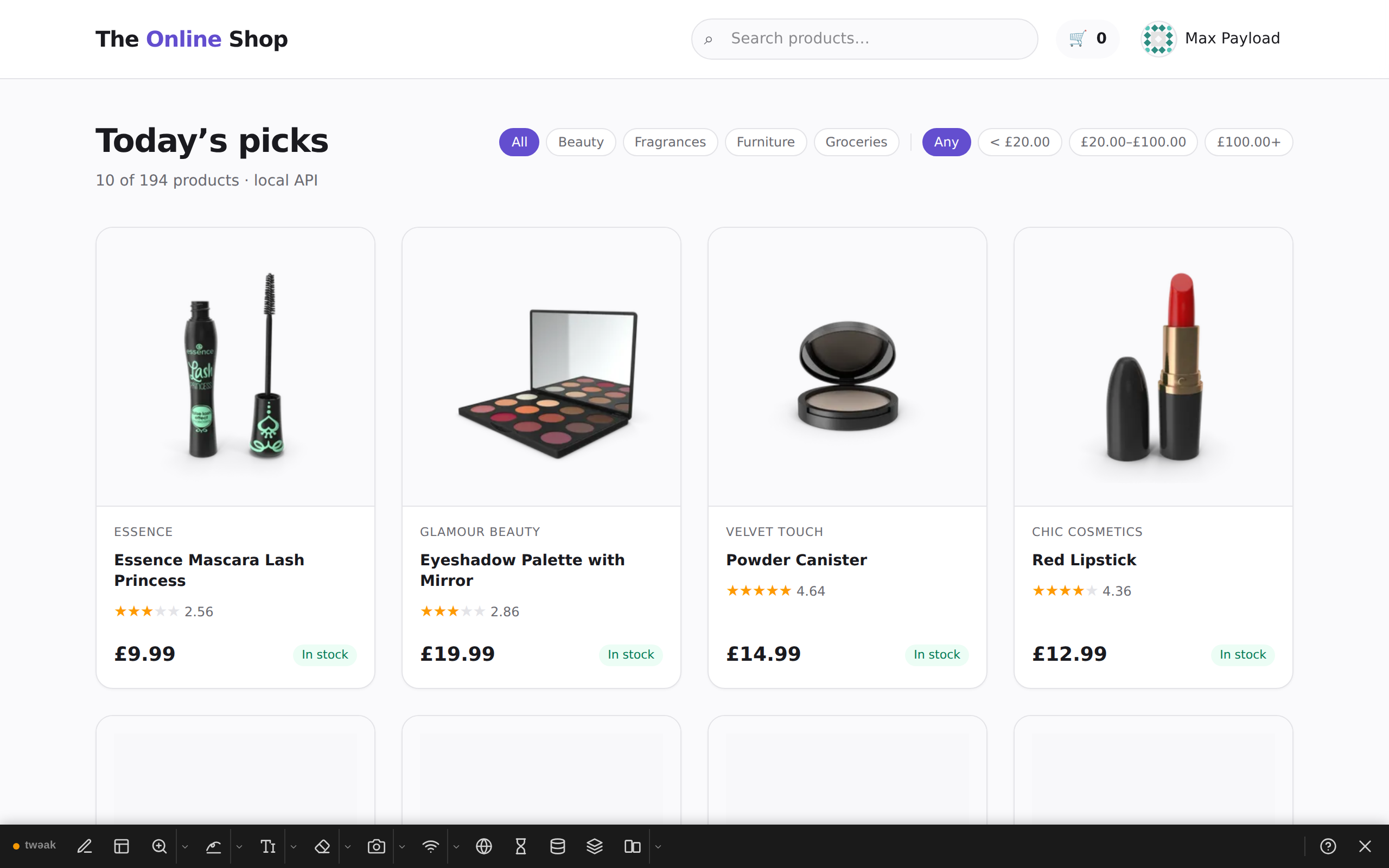
Open it
Any of these opens the toolbox on the current tab, and the same gesture closes it:
- The toolbox button in the popup's top bar.
- The keyboard shortcut Ctrl + Shift + Y (⌘ + Shift + Y on a Mac). It works with the popup closed, and you can change it like any other shortcut.
- An auto-enabled site with Mount the developer toolbox switched on: the toolbox opens by itself every time a matching page loads.

On the bar itself, ? opens these docs and ✕ closes the toolbox. Closing it switches off everything the tools applied: design mode, outlines, throttling, marks and labels. Changes made to the page itself (text you typed, elements you erased) stay until you reload. Until you close it, the toolbox belongs to the tab: it comes back after a reload with the tools you left on, and other tabs are not affected.
Esc puts away the tool you are holding (the marker, the eraser, an open menu), one layer at a time. It never closes the toolbox.
Settings > Toolbox
Open the ⋮ menu in the popup, pick Settings, then Toolbox.
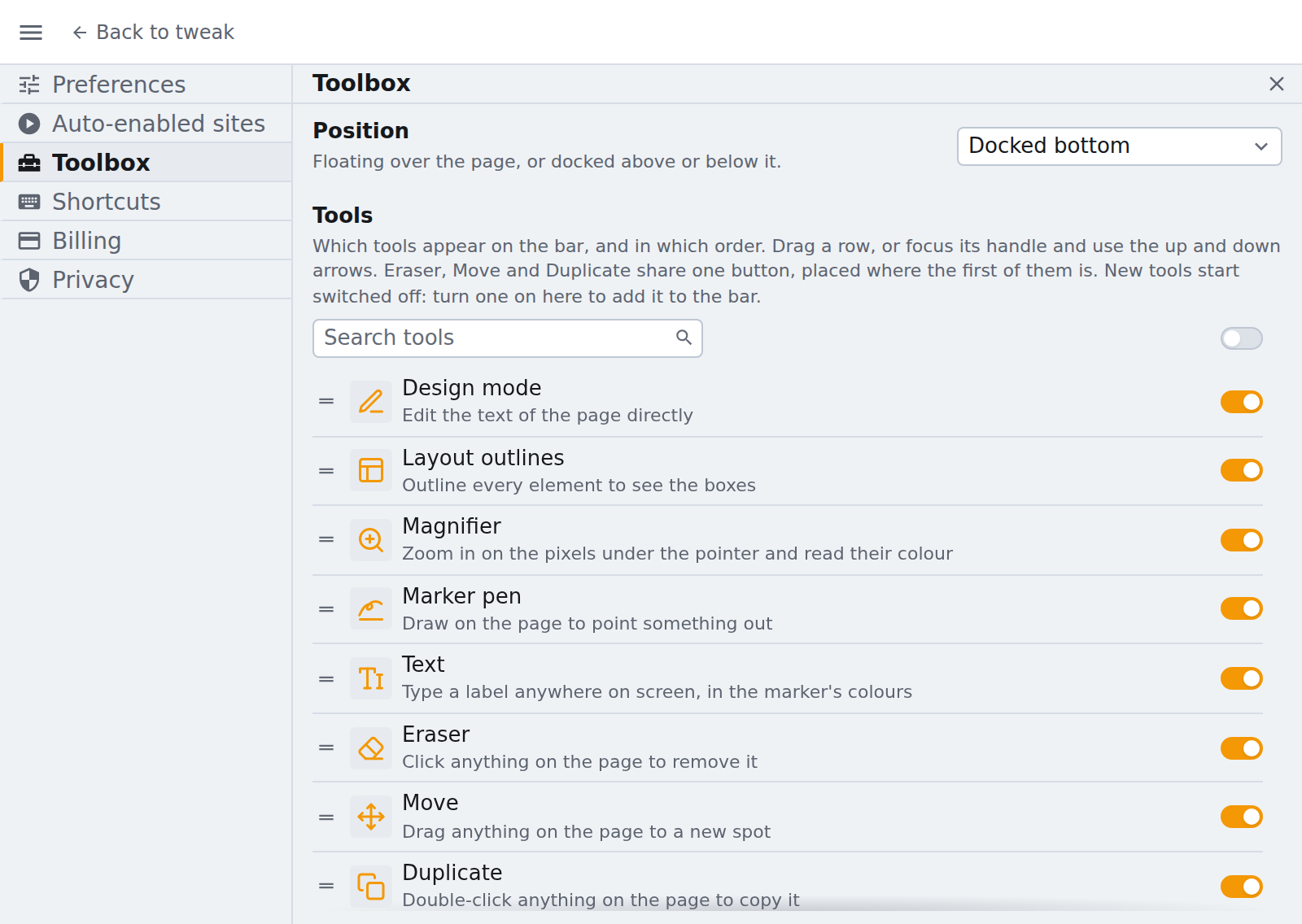
- Position: Docked bottom (the default), Docked top, or a Floating bar you can drag anywhere and fold away to the tweak logo. A docked bar pushes the page aside instead of covering it.
- Tools: a switch per tool decides whether it is on the bar. Drag a row to reorder the bar, or focus its handle and use the up and down arrows. The search field filters the list, and the switch above the list turns every tool on or off at once.
Most tools are on the bar from the start. The ones marked "no" under On by default below are switched off until you turn them on here. Eraser, Move and Duplicate share one button on the bar, placed where the first of them is in your list.
Plans
Some tools are free, some come with Tweak Basic and some with Tweak Max (see the table below). A tool your plan does not include still shows on the bar, dimmed: click it to see which plan unlocks it. In Settings > Toolbox the same tools carry a Basic or Max badge. Compare plans.
The tools
| Tool | What it does | Plan | On by default |
|---|---|---|---|
| Design mode | Edit any text on the page in place | Free | Yes |
| Layout outlines | Outline every element to see the boxes | Free | Yes |
| Magnifier | Zoom in on the pixels under the pointer and read their colour | Free | Yes |
| Marker pen | Draw on the page to point something out | Free | Yes |
| Text tool | Type a label anywhere on screen | Free | Yes |
| Network | Throttle the tab to a preset connection, or take it offline | Free | Yes |
| World clocks | The time in the places you work with, under the bar | Free | No |
| Tech stack | See what the site is built with | Free | Yes |
| Screenshot | Save or copy what is on screen, the whole page or an area | Free | Yes |
| Eraser | Click anything on the page to remove it | Basic | Yes |
| Move | Drag anything on the page to a new spot | Basic | Yes |
| Duplicate | Double-click anything on the page to copy it | Basic | Yes |
| Cookies and storage | Read, edit and copy the page's cookies and web storage | Basic | Yes |
| Redact | Black out text or images before a screenshot | Basic | No |
| Markdown | Save or copy the page's content as Markdown | Basic | No |
| Time zone override | Make the page believe it runs in another time zone | Basic | No |
| Time utils | Convert timestamps, do date math, read durations and cron | Basic | Yes |
| Responsive grids | See the page at several screen sizes at once | Max | Yes |
| Edge cases | Fill a field or a form with awkward data | Max | No |
| Skip form validation | Lift the page's form checks so any value reaches the server | Max | No |
Need something else? Request a feature