Request capture
Record the HTTP requests a browser tab makes, search them from a rule's URL field, and prefill the whole rule from the one you pick: URL, method, status, response payload and response headers.
Before tweak 9.3.0 (before October 2026) this feature was called requests autocomplete, and it was turned on with a search (magnifier) icon. Same feature, new name: it records traffic, it does not autocomplete what you type.
Start capturing
- Click the capture icon in the top bar. tweak starts recording the HTTP requests triggered in the current browser tab, and the icon turns red.
- In that tab, trigger the HTTP requests you want to turn into rules (reload the page, click around, submit a form).
- Add a rule and search for the request directly in its URL field.
- Pick a request and every field of the rule is prefilled with what was captured.


The red dot on the extension icon
While capture is on, tweak also paints a small red dot on its icon in the browser toolbar, the same red as the capture icon in the popup. It is there so you always know a tab is recording, even with the tweak popup closed.
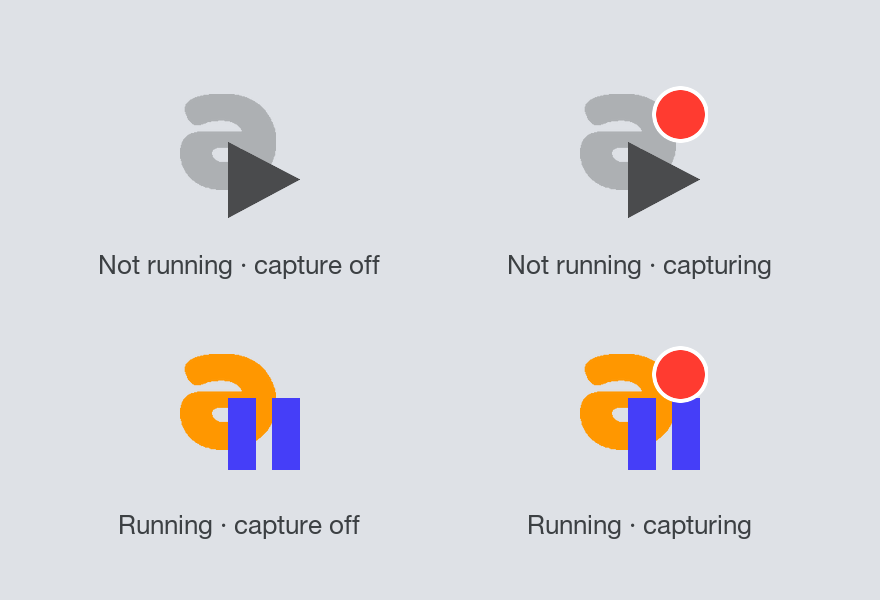
A few things worth knowing about it:
- The dot follows the tab, not the window. tweak captures requests on one tab at a time, so the dot only shows while that tab is the one you are looking at. Switch to another tab and it goes away, switch back and it returns.
- It is independent from run/stop. The icon artwork underneath still tells you whether your rules are being applied, the dot only adds "and this tab is recording requests".
- To stop capturing, click the capture icon again. That stops the recording, clears what was captured and the dot disappears.
On a site you work on every day, you do not have to press the capture icon at all: add it to your auto-enabled sites and capture starts with the page, so the URL field already has something to offer.
Captured requests never leave your browser: they are kept locally so the URL field can search them, and clearing them throws them away.
Search the captured requests
- Search by request URL. Usually the best keyword is the part of the URL that identifies the request you're after.
- Search by HTTP method. Searching for
GETlists every capturedGETrequest. HTTP method keywords are case-sensitive. Handy when you have no clue what the URL looks like, but you do know its method.
Using regular expressions for searching
Turn on the regular expression toggle and the search becomes a regular expression. Most of the time the keyword search above gets you to your request, but for advanced cases regular expressions are there too.
Turn on the regular expression toggle and type .* to list every captured request.
Smart filters
Labelled expressions target particular requests. The supported smart filters:
status:filters by HTTP response status, e.g.status:200shows every captured request with status200.method:filters by HTTP method, e.g.method:POSTshows every capturedPOSTrequest (the method value is case insensitive).rp:(my search query)filters by request payload (request body), e.g.rp:(getUsers)shows only the requests with "getUsers" in their body. A GraphQL query often carries such a keyword underoperationName, so this finds the request with body"operationName": "getUsers"and imports it into a tweak rule straight away.req:(my search query)is the same filter, spelled out.res:(my search query)does the same for the response body, e.g.res:(Ada Lovelace)shows only the requests whose response contains "Ada Lovelace". Reach for this one when you know what you saw on the page but not which endpoint produced it: search for the value, get the request back, and import it as a rule.
Smart filters combine, e.g. status:404 method:get api/v1 lists every GET request with status 404 whose URL contains "api/v1".
Note about data deletion
After deleting all the data in the extension , the captured requests are gone too: trigger the requests in the browser tab again, otherwise the search comes back empty (just like the devtools Network panel is emptied when you refresh the page).
A new way to understand your web application data
Already capturing requests on a page? You don't have to search for them one by one. Data X-Ray uses this same captured data to let you crop-select a region of the page itself and see which requests produced what you're looking at, right there on top of the UI.
Need something else? Request a feature