World clocks
World clocks keeps the time in the places you work with in a strip under the toolbox: your team, your customers, the server's region.
Using it
- Turn the tool on: Settings > Toolbox, switch on World clocks (it is off by default).
- Open the toolbox and click the globe.
- Search a city or a country and click it to add its clock. Click it again to remove it. You can pick up to ten.
- Press Esc or click the globe to close the list. The clocks show in a strip under the bar, and the globe shows how many there are.
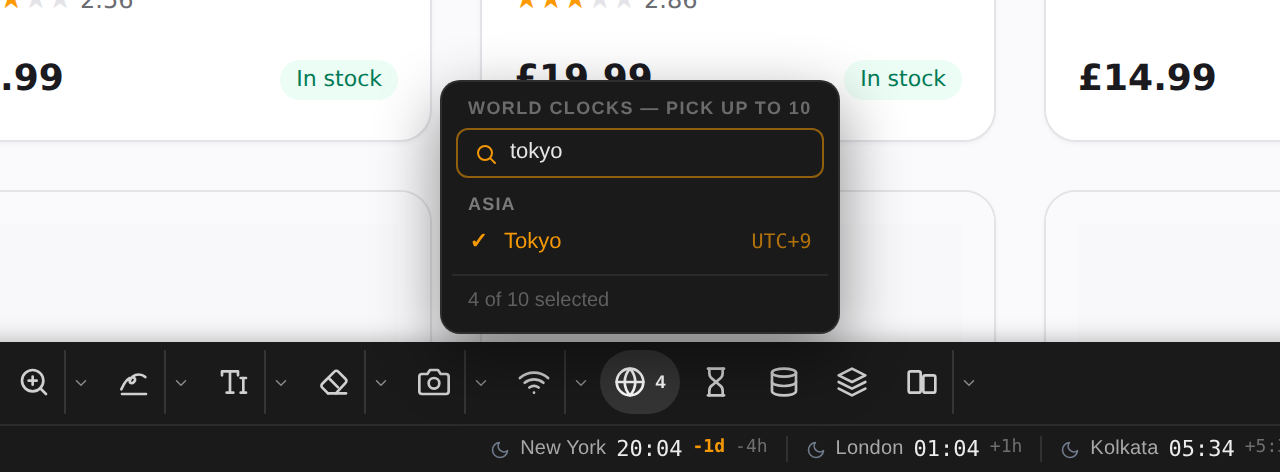
Example: four offices at a glance
With New York, London, Kolkata and Tokyo picked, the strip gives each city's time and how far it is from the page's
own time. +1d means it is already tomorrow there, and the moon says the office is closed.

Good to know
- A sun means working hours (9:00 to 18:00) in that city, a moon means outside them.
- Differences are measured against the time the page sees. With a Time zone override in force, they follow it.
- Your cities are the same on every tab and every site.
Need something else? Request a feature