Time zone override
note
This functionality is available on Tweak Basic and Tweak Max. Compare the plans here.
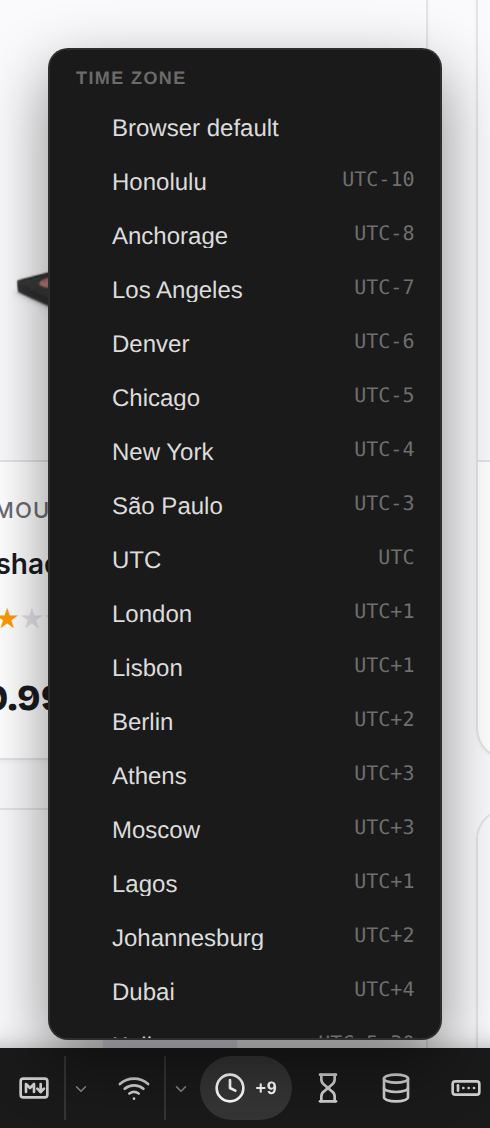
The time zone override makes the page believe it runs in another time zone. Every date and time it formats moves with it, so you see the page the way a user in Tokyo or Los Angeles sees it, without changing your computer's clock.
Using it
- Turn it on in Settings > Toolbox: it is off by default.
- Open the toolbox and click the clock.
- Pick a city. The clock lights up and its tag shows the offset from UTC, such as
+9. - To go back, click the clock and pick Browser default.
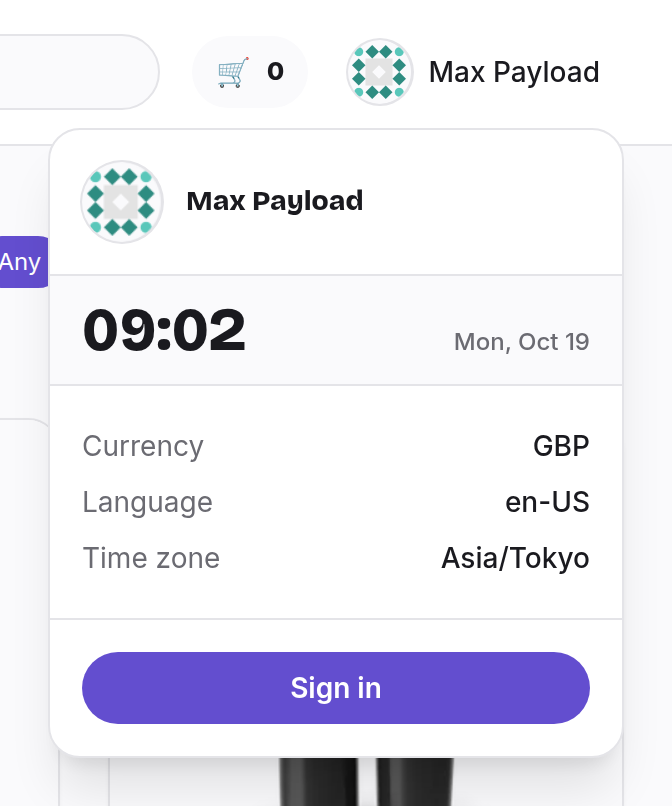
Example: the shop's clock in Tokyo
The shop's profile menu shows a live clock and the time zone the page detected. With Tokyo picked, both follow:
Asia/Tokyo, and Tokyo's time.
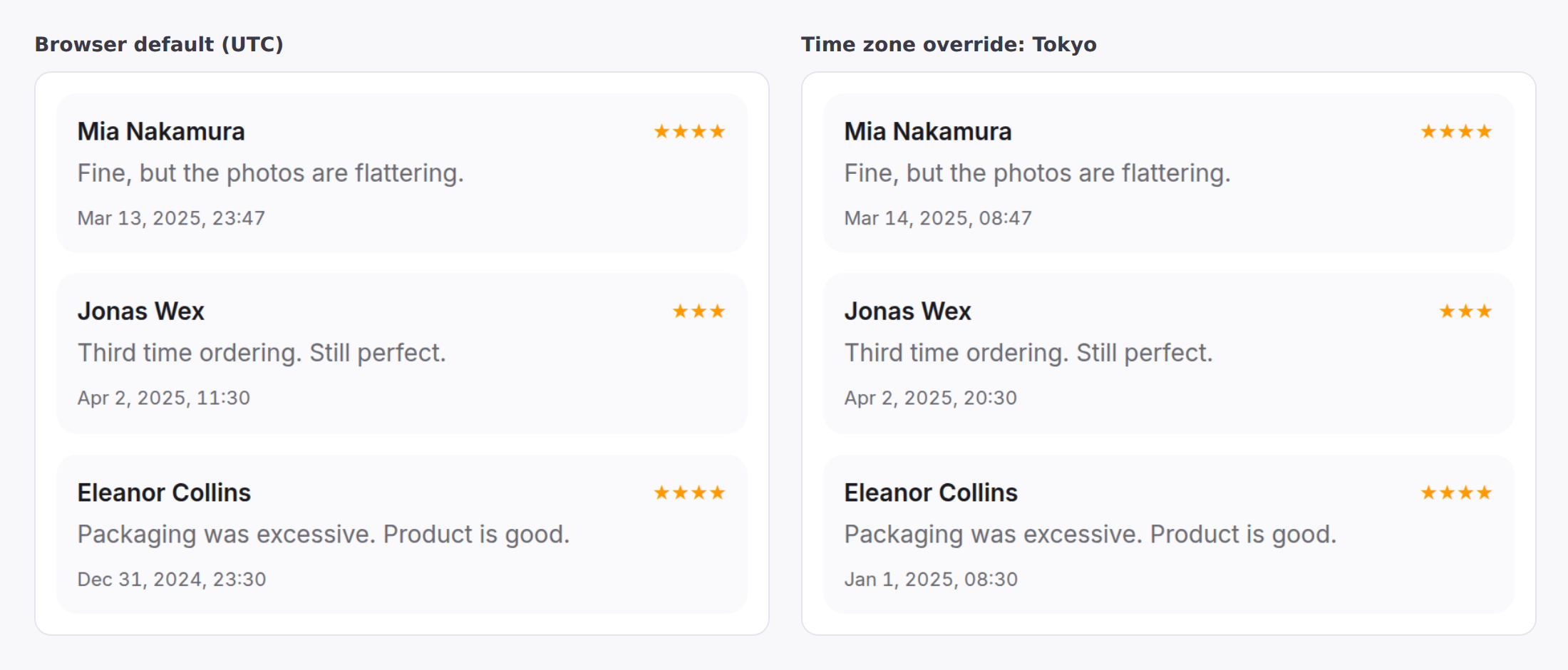
Example: a review that changes day
Review times are stored once, in UTC. A review posted at 23:47 UTC on March 13 is already March 14 in Tokyo, and one from New Year's Eve lands on January 1.
Good to know
- The override applies to the dates and times the page formats, and to the time zone it detects, which is what date libraries read. The moment itself never changes: timestamps the page sends or stores stay the same.
- Text the page already rendered keeps its old time until the page renders it again. Reload if it does not update: the override is still there after a reload, on that tab only.
- Code that asks for a specific time zone gets that zone, not the override.
- Reading a date string without a time zone (
2025-03-14T08:47) still uses your computer's zone. - The world clocks and time utils follow the override, and so do the responsive grids.
Need something else? Request a feature