Network: throttling and offline
The network tool slows the tab down to a real-world connection, or takes it offline, so you can see the loading states, timeouts and error screens your users see.
Using it
- Open the toolbox and click the arrow next to the wifi icon.
- Pick a connection. Each one lists its speed and latency: GPRS, EDGE, Regular 2G, Slow 3G, Fast 3G, Slow 4G, Fast 4G, 5G mid-band, In-flight wifi, Satellite, Hotel wifi, DSL, Cable or Fibre.
- Use the page. The button shows the connection in force (
3G,SAT,OFF...). - Click the wifi icon itself to go offline in one click, and again to come back to the connection you had.
- Pick No throttling to return to normal.
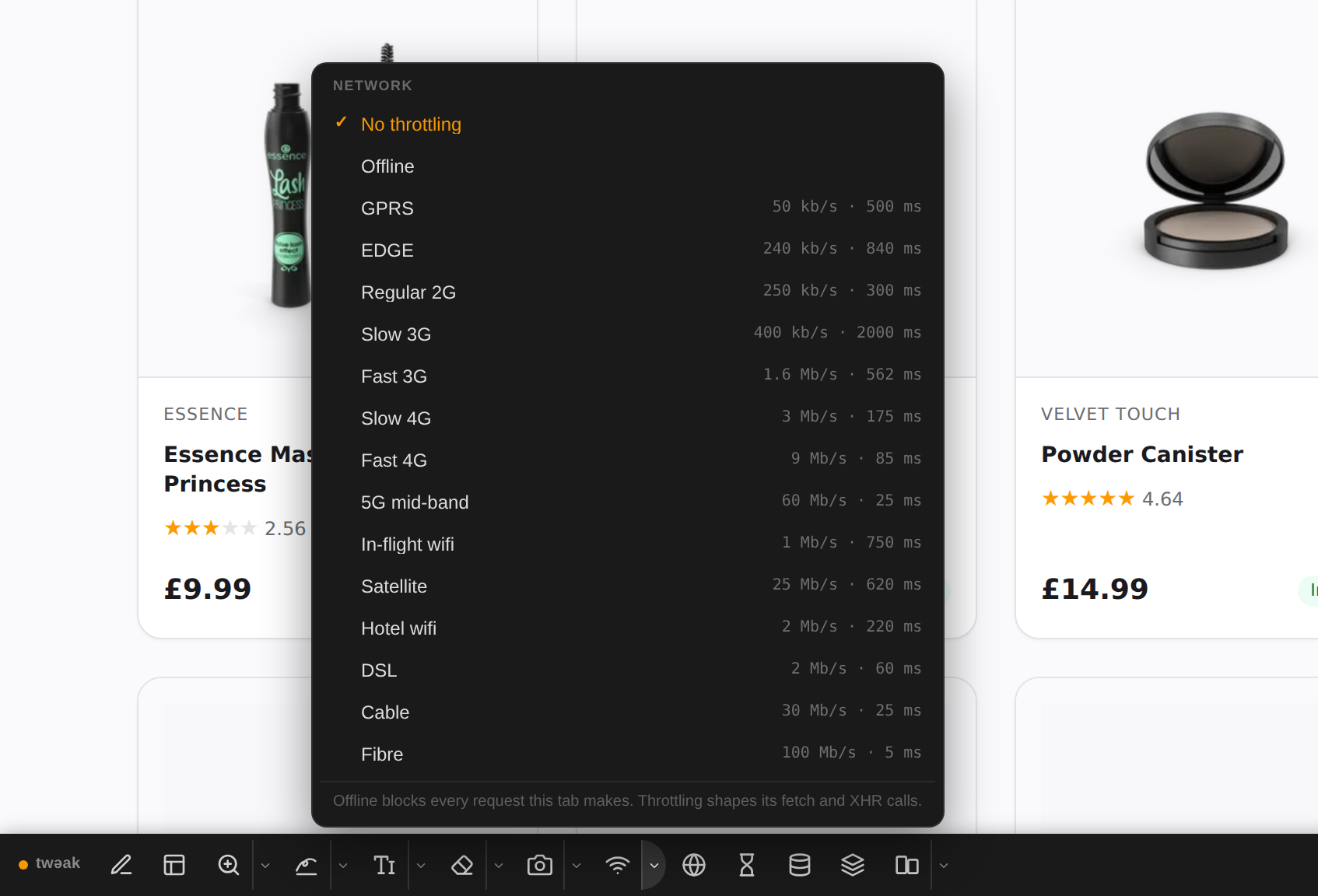
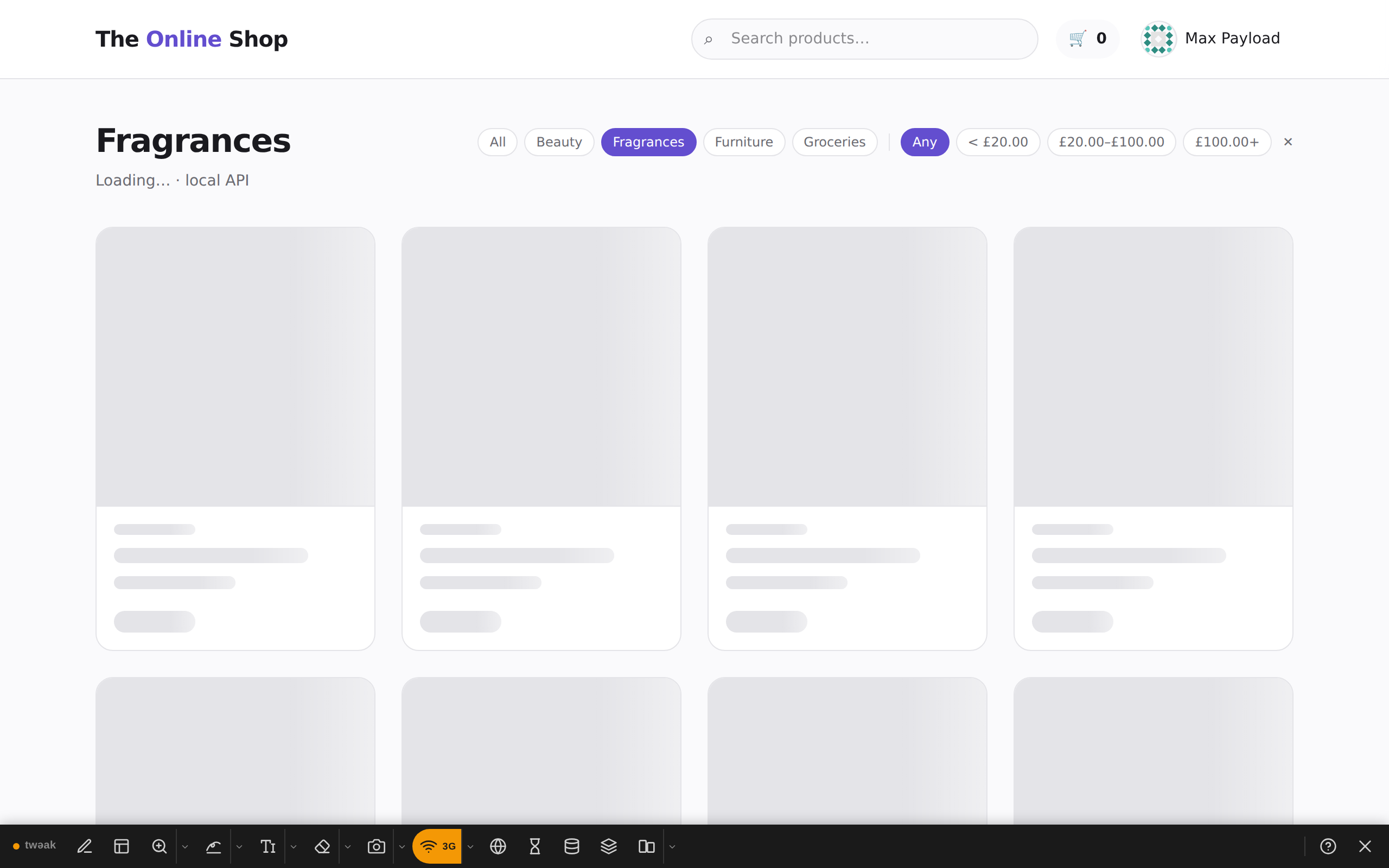
Example: the shop's loading state on Slow 3G
With Slow 3G picked, choose a category on the shop. Every request now waits two seconds before it starts, long enough to see the skeleton cards the shop shows while it loads, and to check that nothing jumps when the products arrive.
Good to know
- Throttling slows the page's own requests (the data it fetches). Images, stylesheets, fonts and scripts load at full speed.
- Offline blocks every request the tab makes, images and fonts included, and tells the page it is offline, the way a lost connection would. Reloading still works, so the toolbox stays on the page and you can switch back.
- Both apply to this tab and this site only, and stay in force across reloads until you change them or close the toolbox.
Need something else? Request a feature