Magnifier
The magnifier is a loupe that follows the pointer: it zooms in on the pixels under it and reads out their colour, so you can check alignment, anti-aliasing or a brand colour down to the pixel.
Using it
- Open the toolbox and click the magnifying glass.
- Move the pointer over the page. The lens shows the pixels around it, the one in the middle is framed, and the readout under the lens gives its colour and position.
- Click to copy that colour (as a hex value) to the clipboard.
- Pick another zoom (2×, 4×, 8× or 16×) from the arrow next to the button. The current zoom is shown on the button.
- Click the button again, or press Esc, to put the magnifier away.
Examples
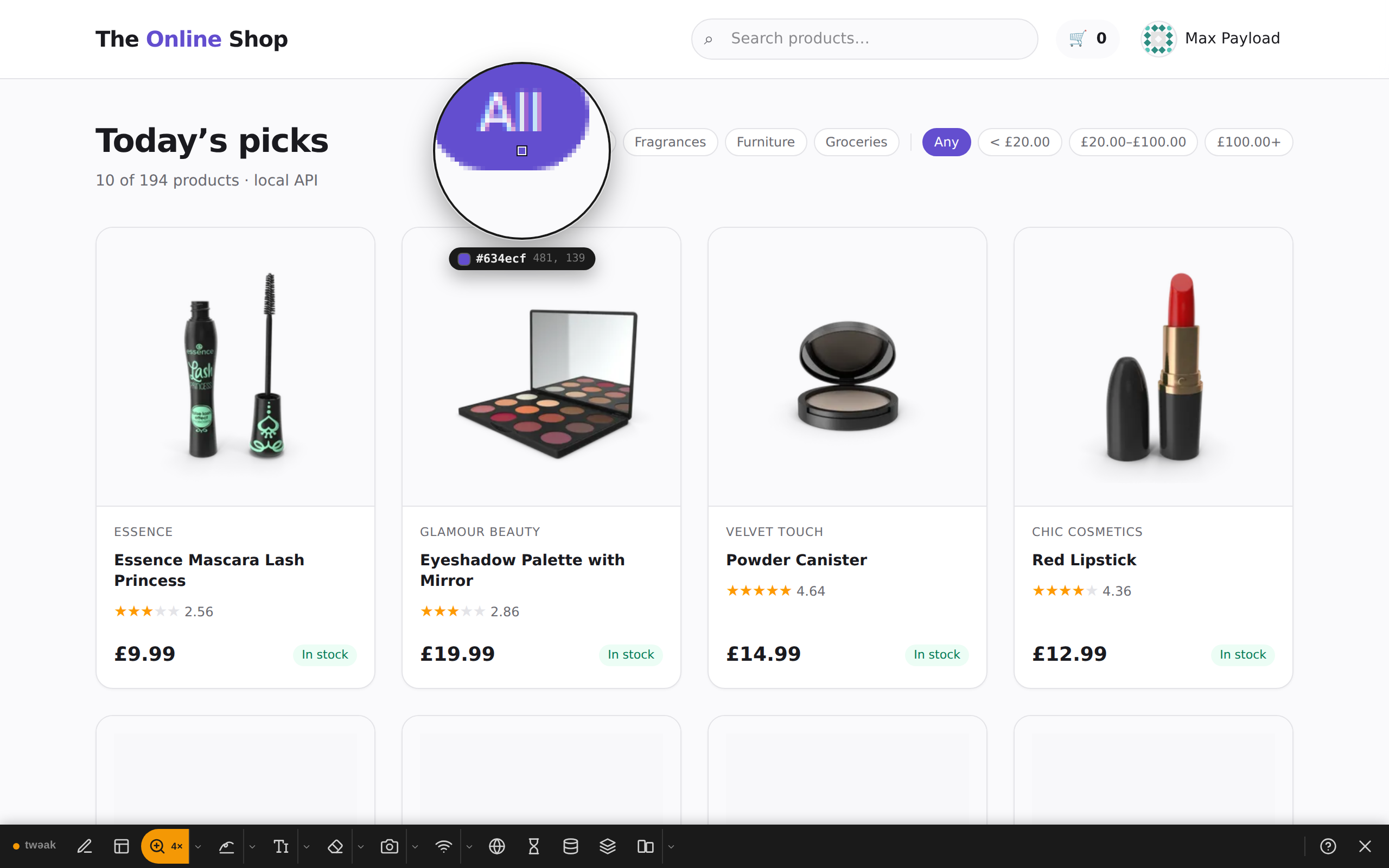
Read a brand colour. Over the shop's selected filter chip, the readout says #634ecf: the colour the browser
actually painted, ready to paste into a design review.
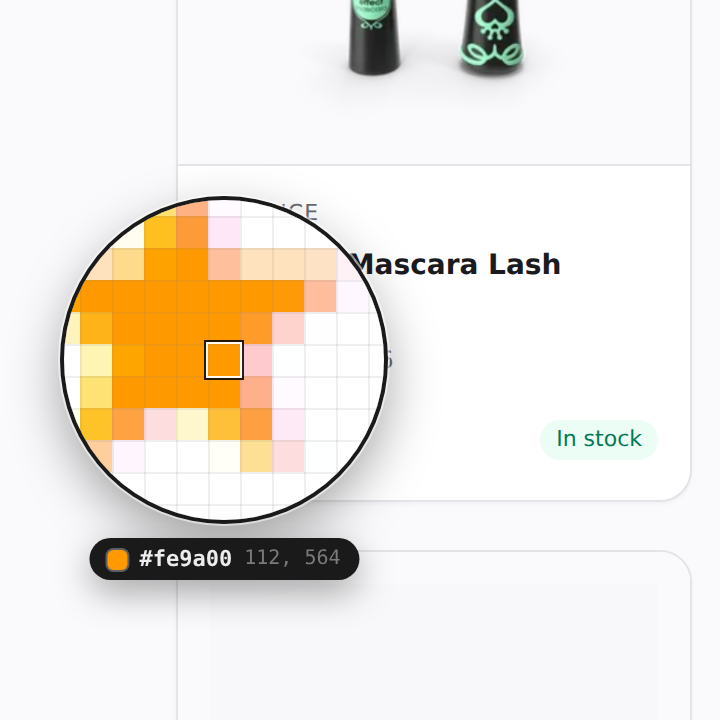
Inspect anti-aliasing. At 16×, a rating star turns into a grid of pixels: the solid orange in the middle reads
#fe9a00, and its edge shows the blended pixels the browser drew between the orange and the white card.
Good to know
- The magnifier works from a picture of the screen, so it shows exactly what is painted: images, videos, canvases and embedded frames included.
- The lens hides while the page scrolls or resizes, and comes back once it settles, so it never shows a stale picture.
- Clicks over the page go to the magnifier, not to the page, while it is out.
- Copying the colour needs a secure page (
https://orlocalhost), where the browser allows writing to the clipboard.
Need something else? Request a feature