Screenshot
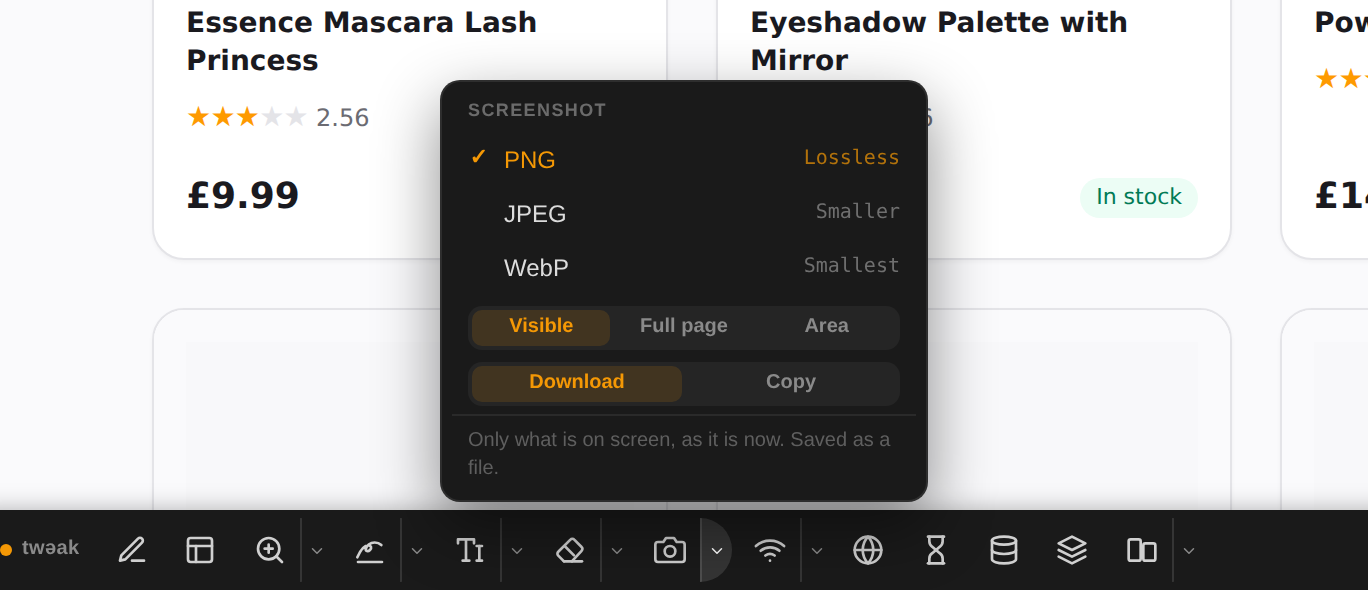
The screenshot tool saves what is on screen, the whole page, or an area you drag across, as an image file or straight to the clipboard. The toolbox hides itself while it takes the picture.
Using it
- Open the toolbox and click the arrow next to the camera to choose:
- Visible (the default), Full page or Area;
- Download (a file) or Copy (the clipboard, ready to paste);
- the format of a download: PNG (lossless), JPEG (smaller) or WebP (smallest).
- Click the camera.
- Visible takes the picture straight away.
- Full page asks what to capture: hover the page (or a panel that scrolls on its own, such as a sidebar or a table) and click it. tweak scrolls it from top to bottom and stitches the picture together.
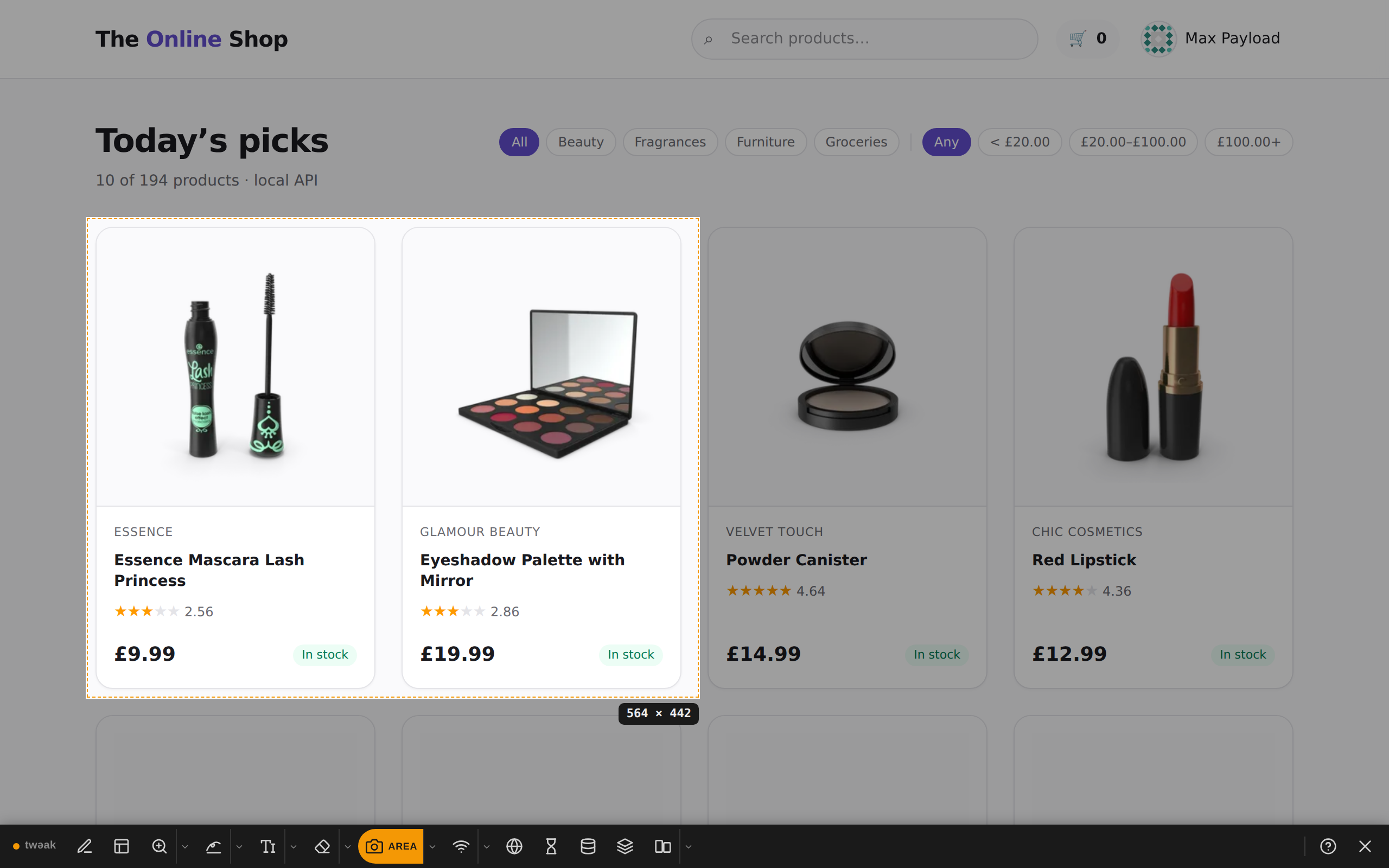
- Area dims the page: drag across the part to keep. Esc cancels.
The camera button shows your choice for the next picture (FULL, AREA, COPY, JPG...), then COPIED once a copy
lands on the clipboard, or ERR if a capture failed.
Example: two products, for a design review
With Area picked, drag across the first two product cards. The size of the selection shows next to it, and letting go saves exactly that part of the screen.
Good to know
- Marker strokes and text labels are part of the picture, so annotate first and shoot second.
- A copy is always a PNG, the one image format every app pastes.
- Full page captures a header that stays at the top once, not once per screen, and keeps scrolling an endless list while it loads more (up to twenty more pages). A very tall page is cut at the largest image the browser can make.
- Full page captures one scrolling area at a time: the one you clicked.
Need something else? Request a feature