Eraser, Move and Duplicate
This functionality is available on Tweak Basic and Tweak Max. Compare the plans here.
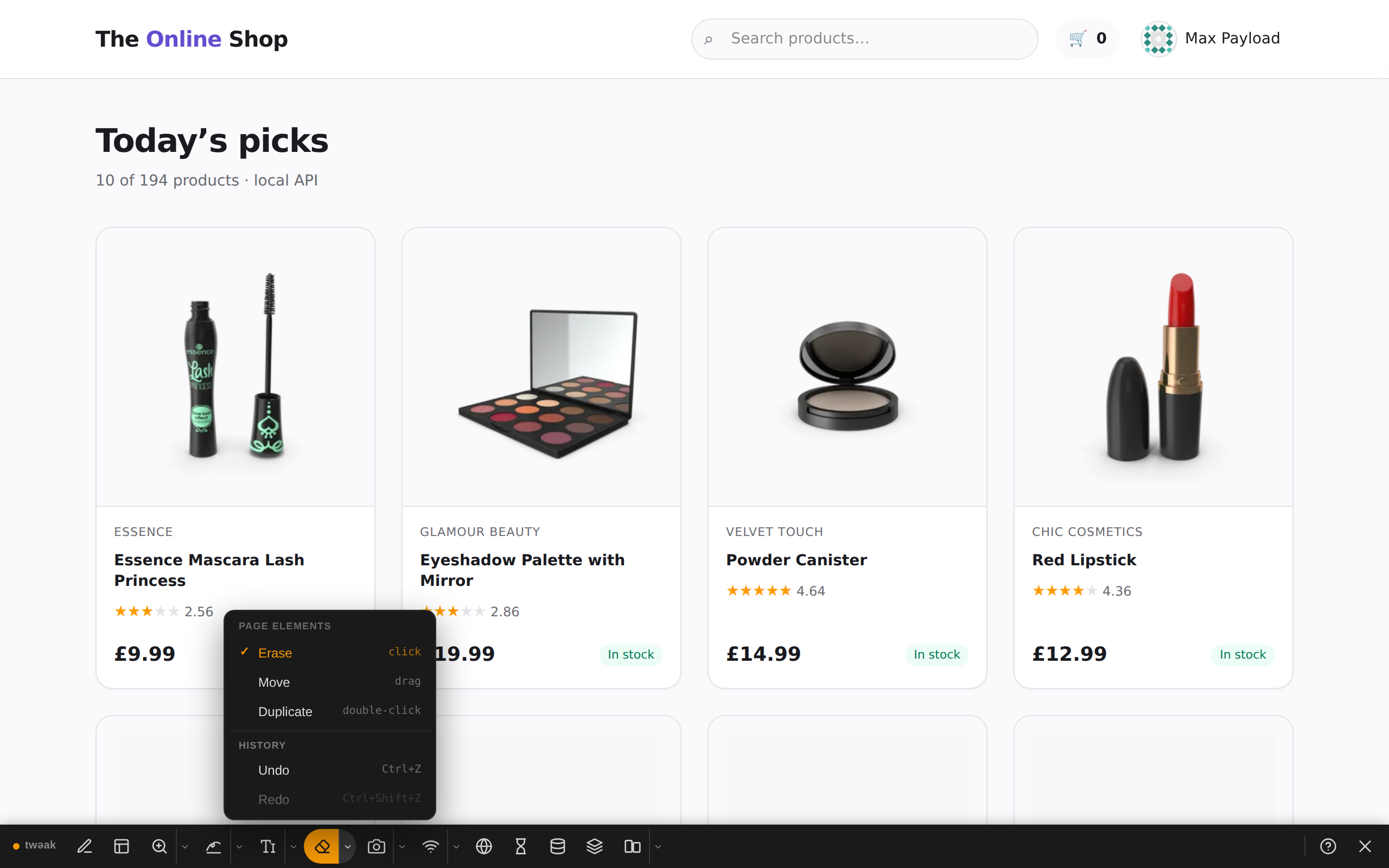
Three tools that change the page in place, without touching its code: the eraser removes what you click, Move drags it somewhere else and Duplicate copies it. They share one button on the bar: pick the one you need from the menu behind its arrow.
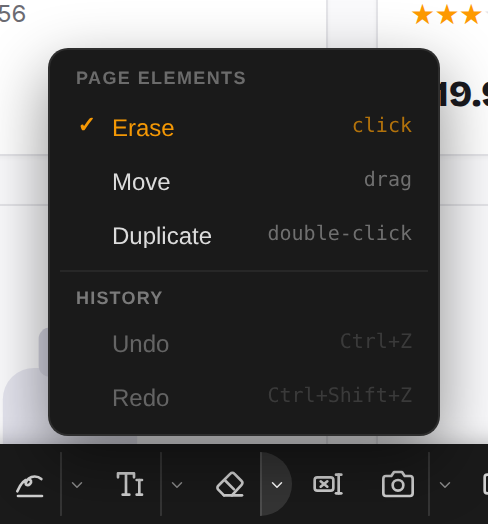
All three undo with Ctrl + Z (⌘ + Z on a Mac) and redo with Ctrl + Shift + Z (⌘ + Shift + Z), or from History in the same menu. Click the button again, or press Esc, to put the tool away.
Eraser
The eraser removes whatever you click from the page: a cookie banner in the way of a screenshot, a chat widget, a whole section you want to see the page without.
- Open the toolbox and click the eraser.
- Hover the page. An outline shows what a click would remove.
- Click to remove it. Over a piece of text, only that text goes; elsewhere, the whole element under the pointer goes.
Example: the shop without its filters
Point between two of the shop's filter chips and the outline takes in the whole row of filters.
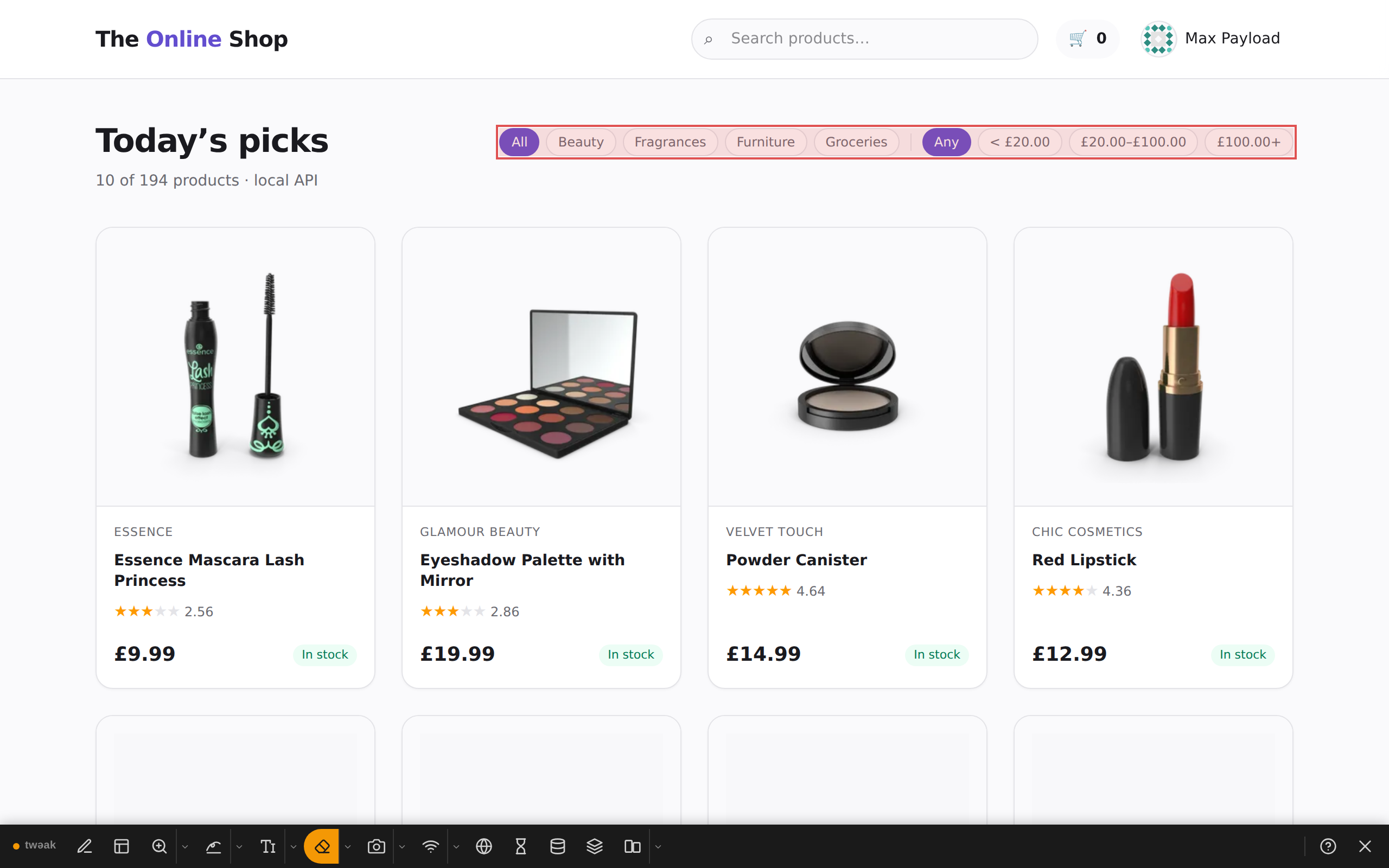
One click and the heading has the row to itself, with Undo one click away in the menu.
Move
Move lets you drag any element of the page to a new spot, to try another order or layout before anyone writes the code for it.
- Pick Move from the menu behind the eraser's arrow.
- Hover the page. An outline shows the element under the pointer.
- Drag it. A line shows where it will land: before or after the element you are over. Release to drop it there.
Example: reorder the shop's filters
Would Groceries do better as the first category? Drag its chip onto the left edge of Beauty: the line says it will land right before it.

Release, and the row reads All, Groceries, Beauty, Fragrances, Furniture.

Duplicate
Duplicate copies any element of the page with a double-click, to see how a layout copes with more of something than the data you have gives it.
- Pick Duplicate from the menu behind the eraser's arrow.
- Hover the page. An outline shows what a double-click would copy.
- Double-click. The copy lands right after the original. Double-click again for another one.
Example: more categories than the row was designed for
The shop's filter row fits four categories next to the heading. Double-click the Groceries chip three times (on its edge, not on its label) and the row runs out of room: it drops under the heading and pushes the product count down.

Good to know
- Closing the toolbox keeps the page as you left it: erased elements stay gone, moved ones stay put, copies stay. Reloading the page puts everything back.
- The shortcuts work while a tool is out and you are not typing in a field.
- Embedded content, such as a video or a map in a frame, can be erased like anything else.
- Move and Duplicate work on elements: over a piece of text, Duplicate copies only that text, so double-click the edge of an element to copy all of it, and hover the box around the text to move it.
- With Move or Duplicate out, a single click does nothing on the page, so a link can be dragged without opening it and a stray click never litters the page.
- A copy looks like the original but does nothing when clicked: the page's code is not attached to it.
- Move and Duplicate are off while the responsive grids are open.
Need something else? Request a feature