How to Change Timezone in Chrome for Testing

Your computer is in one time zone, your CI runner is in UTC, and your users are everywhere else. A date that renders fine on your screen can be a day off in Sydney, an hour off the week clocks change, and "today" can mean yesterday for a customer in Los Angeles. Most of these bugs are invisible until someone in the wrong place opens the page.
The fix is to look at the page from another time zone on purpose. This guide covers four ways to change the timezone in Chrome for testing, what each one actually changes, and a checklist of the cases worth checking once you can.
Why time zone bugs slip through
A timestamp is the same moment everywhere. What changes is how the page reads it: which calendar day it falls on, which hour it shows, whether it is before or after midnight. Bugs live in that reading:
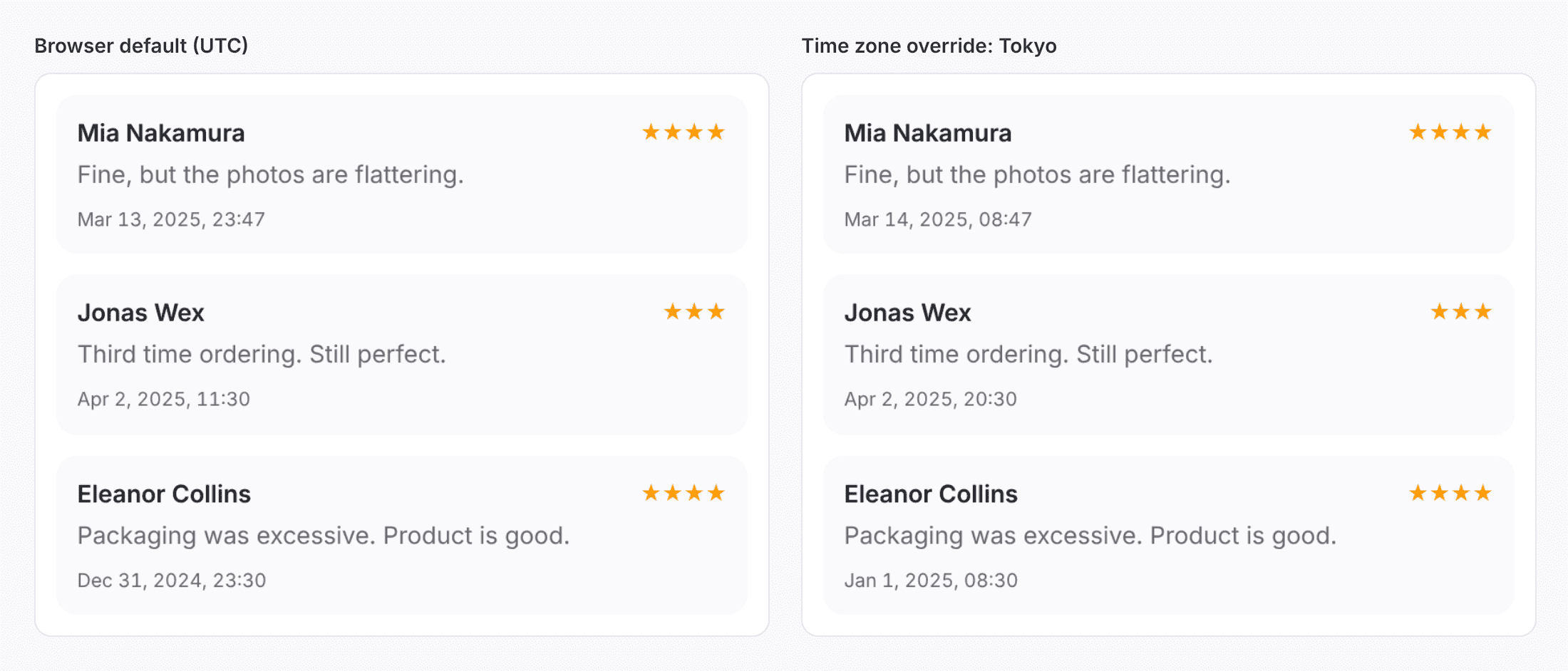
- Day boundaries. A review posted at 23:47 UTC on March 13 is already March 14 in Tokyo. A list grouped by day, a "today" filter or a daily streak puts it in the wrong bucket if the code mixes UTC and local time.
- Daylight saving time. On the night clocks go forward, one local hour does not exist. On the night they go back, one happens twice. A meeting at 02:30, a "24 hours later" computed as "same time tomorrow", or a day assumed to be 24 hours long all break there.
- Odd offsets. Not every zone is a whole hour from UTC: India is
+5:30, Nepal+5:45. Code that rounds offsets to hours breaks quietly. - Date-only strings. In JavaScript,
new Date('2025-03-14')is read as UTC midnight, whilenew Date('2025-03-14T08:47')is read in local time. West of UTC, the first one shows as March 13. - Deadlines. "Offer ends at midnight" means whose midnight? A countdown, a cut-off for next-day delivery, a booking window: each has a zone, stated or not.
If you only ever test in your own zone, you only see the bugs your own zone has.
Option 1: Chrome DevTools Sensors
Chrome's developer tools can override the time zone of one tab.
- Open DevTools (F12, or Cmd + Option + I on a Mac).
- Open the Command Menu with Ctrl + Shift + P (Cmd + Shift + P on a Mac), type
sensorsand pick Show Sensors. - Under Location, pick one of the presets (each one carries a timezone ID), or pick the custom option and type a timezone ID such as
Asia/Tokyo. - Reload the page so everything it already rendered is rendered again.
You can save your own presets in DevTools Settings > Locations: a name, a latitude and longitude, a Timezone ID from the IANA time zone database (America/New_York) and a locale.
Good for: a quick look, no install. Edge has the same Sensors tool, since it is built on Chromium.
Limits: it lasts while DevTools stays open on that tab, so a teammate repeating your steps has to reproduce the setup. A preset also overrides the geolocation, which may not be what you meant to test. Firefox's developer tools have no equivalent.
Option 2: launch Chrome with the TZ variable
On Linux and macOS, the browser reads its time zone from the TZ environment variable when it starts. Launch a separate instance with it set:
# Linux
TZ=Asia/Tokyo google-chrome --user-data-dir=/tmp/chrome-tokyo

# macOS
TZ=Asia/Tokyo "/Applications/Google Chrome.app/Contents/MacOS/Google Chrome" --user-data-dir=/tmp/chrome-tokyo
The separate --user-data-dir matters: if Chrome is already running with your normal profile, a new launch just opens a window in the existing process, in your usual zone.
Good for: the whole browser in one zone, every tab, every page, and scripts that launch a browser. In automated tests, prefer the frameworks' own options: Puppeteer has page.emulateTimezone('Asia/Tokyo') and Playwright takes timezoneId on browser.newContext().
Limits: a throwaway profile with none of your sign-ins or extensions, one zone per launch, and no Windows equivalent worth recommending.
Option 3: change the operating system's time zone
Set the time zone in your system settings and every app follows, the browser included.
Good for: testing something that runs outside the browser too, such as a desktop app or a calendar invite.
Limits: it changes everything: your calendar, your chat timestamps, your logs. It is easy to forget to switch back, and it does not answer "what does this look like in three zones?" without switching three times.
Option 4: the time zone override in tweak's Developer Toolbox
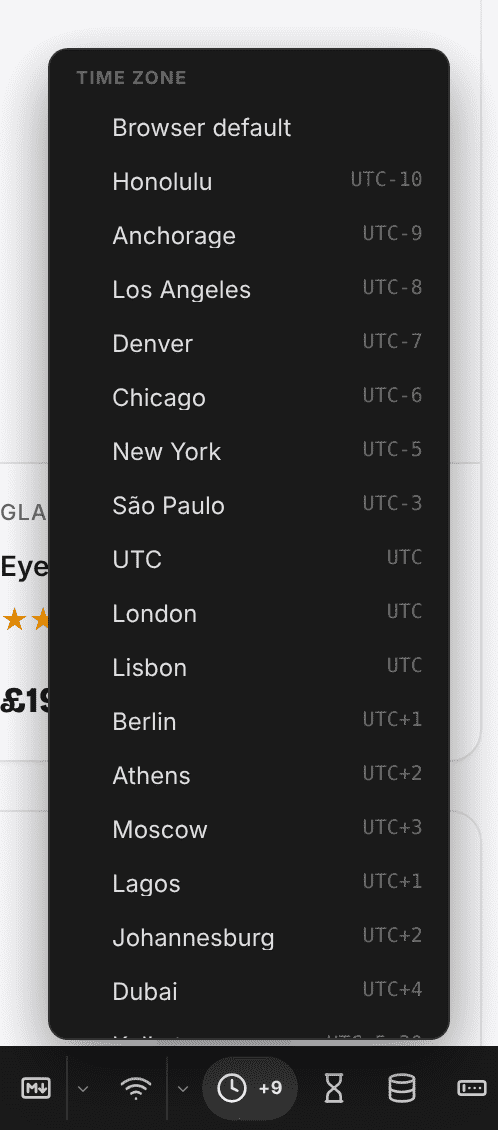
The Developer Toolbox is a toolbar tweak paints on the page, and its time zone override makes the page believe it runs in another time zone. It is part of Tweak Basic and Tweak Max.
- Turn it on in Settings > Toolbox: it is off by default.
- Open the toolbox (Ctrl + Shift + Y, or ⌘ + Shift + Y on a Mac) and click the clock.
- Pick a city. The clock lights up and its tag shows the offset from UTC, such as
+9. - To go back, click the clock and pick Browser default.
Every date and time the page formats moves with it, and so does the time zone it detects, which is what date libraries read. Here are the same three reviews, stored once in UTC, on the left in UTC and on the right in Tokyo. Two of them land on a different day:
What to know before you rely on it:
- The moment never changes. Timestamps the page sends or stores stay the same; only their local reading moves.
- Reload if the page does not update. Text already rendered keeps its old time until the page renders it again. The override is still there after a reload, on that tab only.
- Explicit zones win. Code that asks for a specific time zone gets that zone, not the override.
- Date strings without a zone (
2025-03-14T08:47) are still read in your computer's zone.
Two neighbours on the same bar help with the same job:
- World clocks (free, off by default) keeps the time in up to ten cities in a strip under the toolbox, with the difference from the page's time.
+1dmeans it is already tomorrow there. With an override in force, the differences follow it. - Time utils (Tweak Basic) reads whatever you paste: a Unix timestamp, an ISO date, date math such as
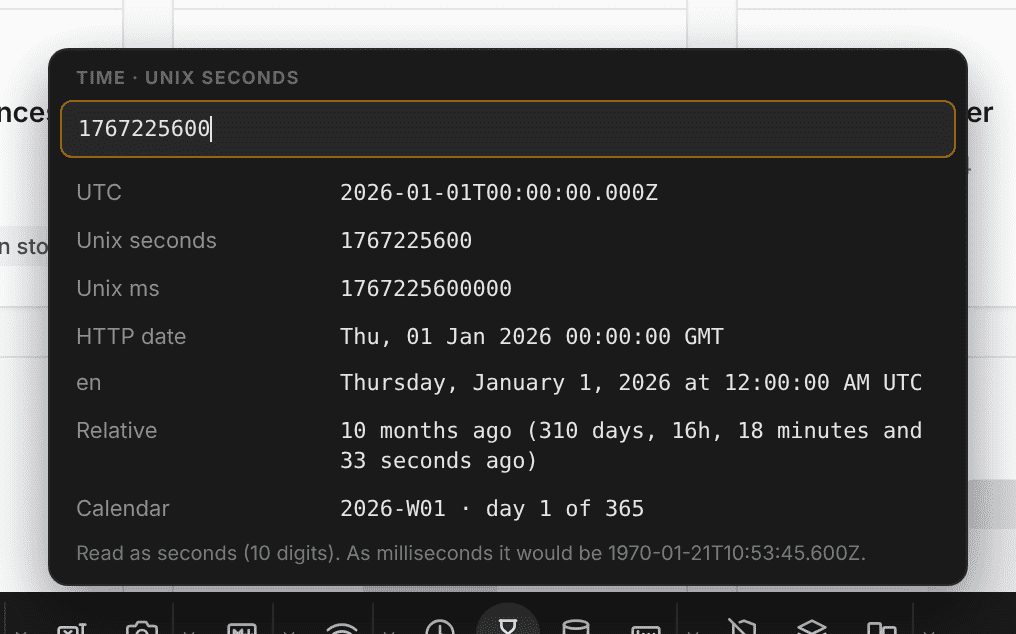
now-7d/d, a duration or a cron expression. It answers in the page's time zone, so it follows the override too, and its notes flag a date without a time zone or a daylight saving change inside a duration.
Good for: your real browser, your real sign-ins, one tab in another zone while the others stay in yours, and switching cities in two clicks.
Which one to use
| Option | Scope | Stays after reload | Needs |
|---|---|---|---|
| DevTools Sensors | One tab | While DevTools is open | Nothing, Chromium browsers |
TZ at launch | A whole browser | Yes | A separate profile, Linux/macOS |
| Operating system settings | The whole computer | Yes | Remembering to switch back |
| tweak's time zone override | One tab | Yes, on that tab | tweak, Tweak Basic |
For automated tests, use your test runner's timezone option. For a quick look, DevTools is already there. For manual testing you do every week, a switch on the page saves the most time.
A checklist of date and time cases to test
Pick at least one zone east and one west of yours, plus UTC, then go through:
- An item created near midnight UTC. Does it show on the right day in Tokyo (
+9) and Los Angeles (-8or-7)? - "Today", "yesterday" and "this week" filters. Do they use the user's day or the server's?
- A date-only field (a birthday, a due date). Does it stay the same date in every zone, or shift by one west of UTC?
- The daylight saving weeks. Schedule something at 02:30 on the night clocks go forward, and something an hour later on the night they go back.
- A half-hour zone, such as
Asia/Kolkata(+5:30). Are offsets and countdowns still right? - Deadlines and countdowns. Does "ends at midnight" name the zone, and does the countdown reach zero at the same moment everywhere?
- Relative times. "2 hours ago" should not change with the zone; if it does, the code is mixing local and UTC.
- What the server receives. A date picked in Tokyo should be sent as the moment the user meant, not reinterpreted in the browser's own zone.
- Week starts and month ends. A report for "this month" run on the last evening of the month, west of UTC.
To pin the data as well as the zone, mock the endpoint so it returns timestamps right on those boundaries: how to test error states in your frontend shows how to make an API return exactly what you need, and it applies just as well to a payload full of awkward dates.
FAQ
How do I change the timezone in Chrome without changing my computer clock?
Open DevTools, open the Sensors panel (type "sensors" in the Command Menu), and pick a location or enter a timezone ID such as Asia/Tokyo under Location. The override lasts while DevTools stays open on that tab. tweak's Developer Toolbox has a time zone override that stays on the tab after a reload, without DevTools.
Does a timezone override change Date.now() or the timestamps my app sends?
No. A timezone override changes how the page formats dates and which zone it detects. The moment itself is the same everywhere, so Date.now() and the timestamps your app sends or stores do not change. Only the local reading of them moves.
Can I set the timezone for automated tests?
Yes. Puppeteer has page.emulateTimezone('Asia/Tokyo') and Playwright takes a timezoneId option on the browser context. For a whole browser on Linux or macOS, launch it with the TZ environment variable set, in a separate profile.
Is the time zone override in tweak free?
The time zone override and time utils are part of Tweak Basic and Tweak Max. World clocks is one of the free toolbox tools. Both paid plans come with a 7-day free trial.
Summary
Time zone bugs hide in the reading of a date, not the date itself, so the only way to find them is to read the page from somewhere else. DevTools Sensors is there for a quick look, TZ and your test runner cover whole browsers and automated runs, and the OS setting covers everything at a cost. If you check time zones as part of your regular work, the time zone override keeps one tab in another city for as long as you need it, next to the other toolbox tools.
For more extensions that make frontend work faster, see our list of top browser extensions for frontend developers.
If you liked this article, consider sharing (tweeting) it to your followers.
Need something else? Request a feature